Upgrading drives in GCP the good ol’ fashioned way
Google, you are drivin’ me crazy#
It has been fun running systems across three different cloud environments. Each one has their own nuance making me learn one thing three different times. The most recent fun has been managing disks for virtual machines.
I need to upgrade some of our servers’ hard drives to solid state drives to fix some disk bottlenecks. Yes, even the cloud can provision both hard drives and solid state drives if your heart desires.
AWS was by far the cleanest, gold star. You don’t even need to turn off the VM, they’ll upgrade it for you live, no downtime. Azure ranks second place here, I only need to turn off the VM to upgrade the disk in place. No big deal.
Google is the worst offender here. I need to turn off the VM, clone the disks to a new upgraded drive and then swap the drives by detaching the old drive and attach the new drive with the same settings. Come on Google, AWS figured out how to swap parts while driving the car, Azure needs a pit stop, but this.. your design choice was to make me stop and reassemble it?
Nuance aside, this felt the most nostalgic. Back in my first IT job I would pull a machine, clone the hard drive using those two bay drive docks and then replace the drive to complete the upgrade. That’s right, we didn’t have SCCM, we we’re barely lucky enough to get that drive bay to avoid USB installs.
Nostalgia aside, being pulled back in time to manage the server isn’t a great feeling in itself.
The plan#
I need to turn off the virtual machine, clone the existing drive as an ssd, swap the drives and then turn the VM back on. I’ll be using the GCP Powershell module. Once it’s go time, I’ll use the cloud shell to avoid any network issues from my device.
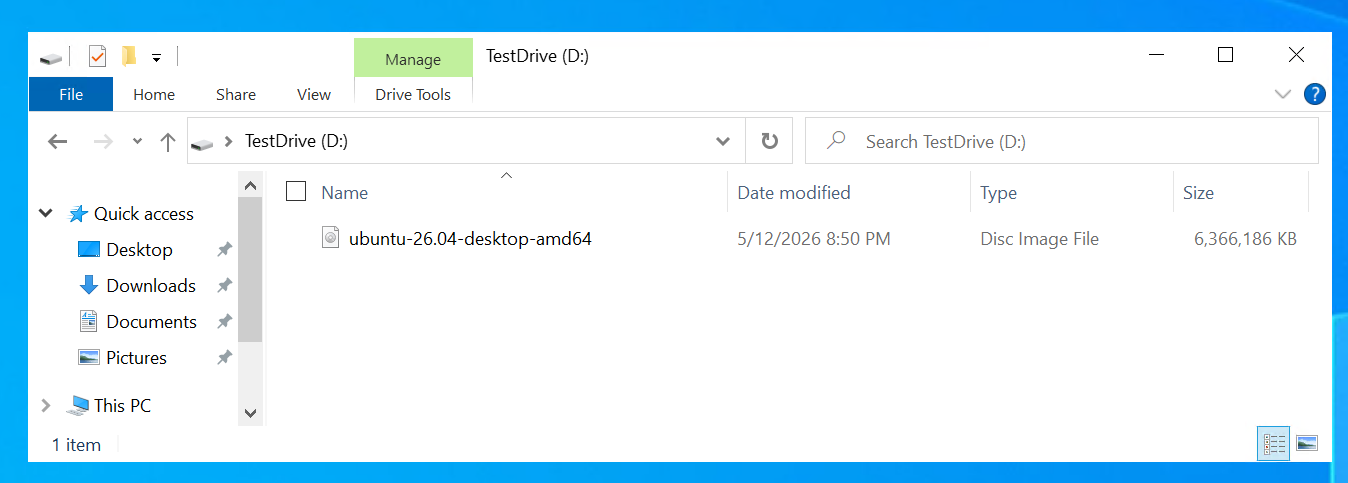
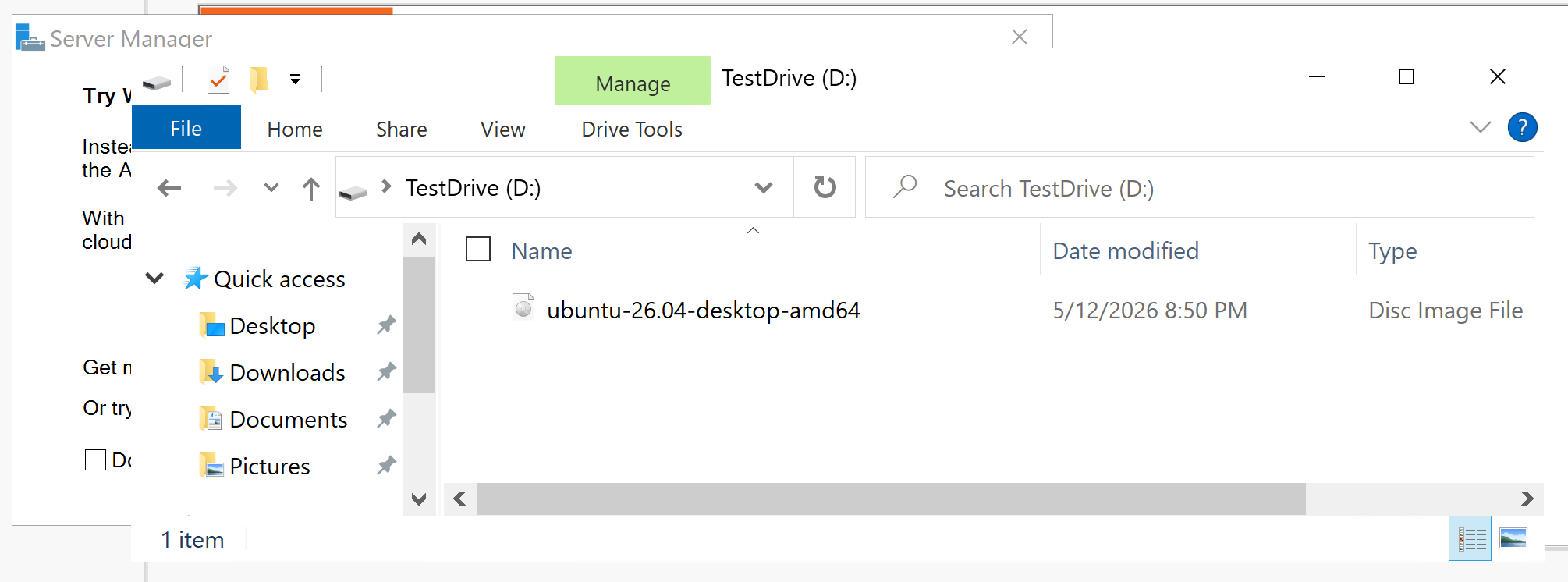
For this exercise, I’ve created a dummy Windows Server with an extra D drive and I’ll swap it for an ssd drive. This will mimic my production server. I’m expecting the new drive to just swap in without configuration and to make doubly sure, this ISO of Ubuntu should be on the new disk upon rebooting. If I need to use Disk Management to fix something, that’s bad for me.
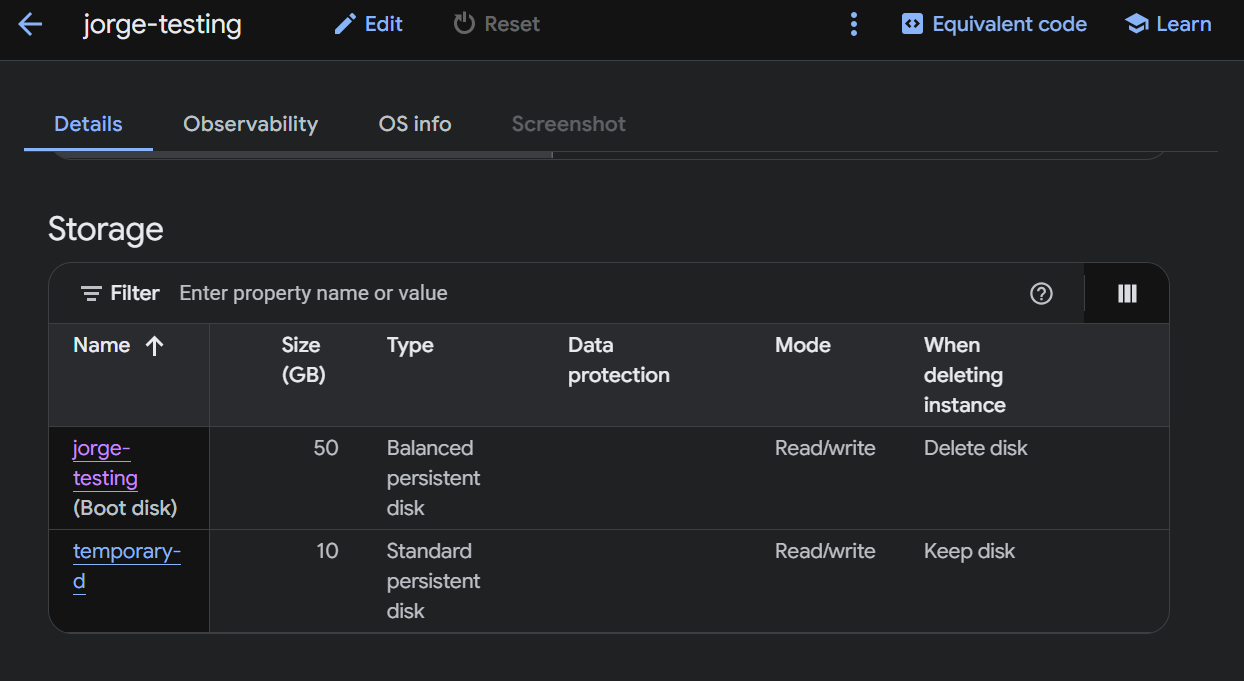
I’ll add the screenshots for what its supposed to look like in the console as I go along.
1. Stop the Virtual Machine#
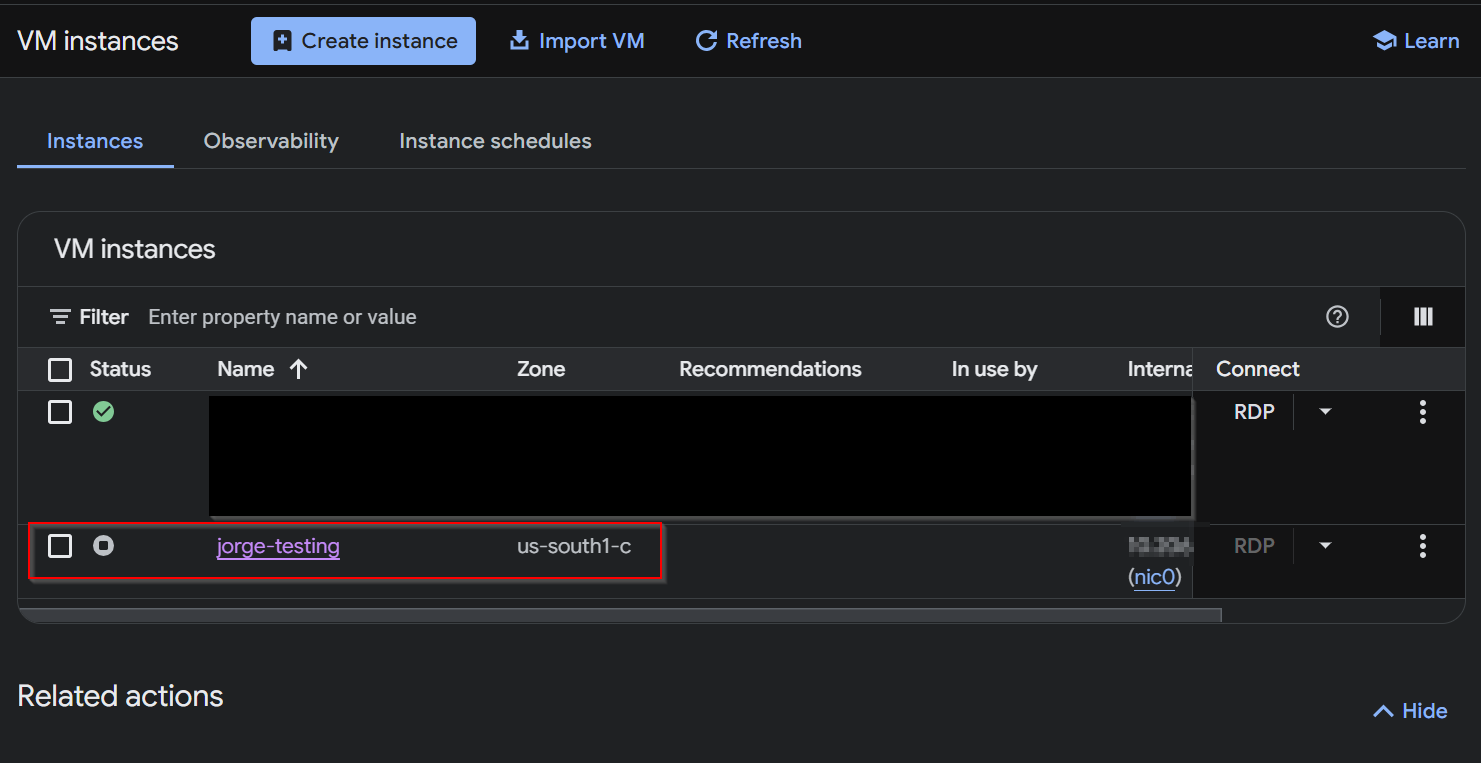
First things first, put the VM to bed.
gcloud compute instances stop 'jorge-testing' --zone=us-south1-c
Stopping instance(s) jorge-testing...done.
2. Take a snapshot#
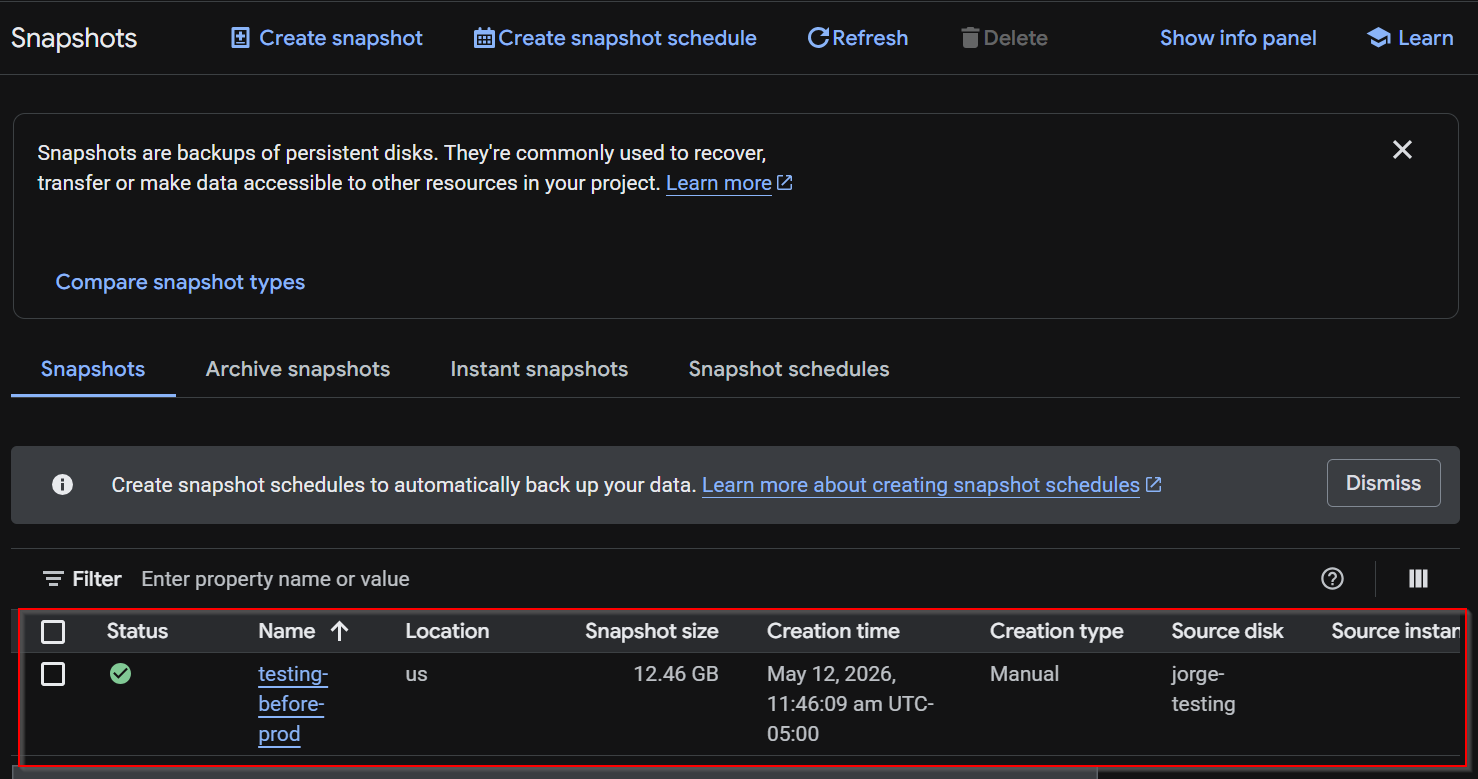
snapshot, snapshot, snapshot! Even though I need one to make the disk, you should schedule them. This can vary in time depending how big the disk is.
gcloud compute disks snapshot 'temporary-d' --snapshot-names='testing-before-prod' --zone=us-south1-c
Creating snapshot(s) testing-before-prod...done.
3. Clone the drive#
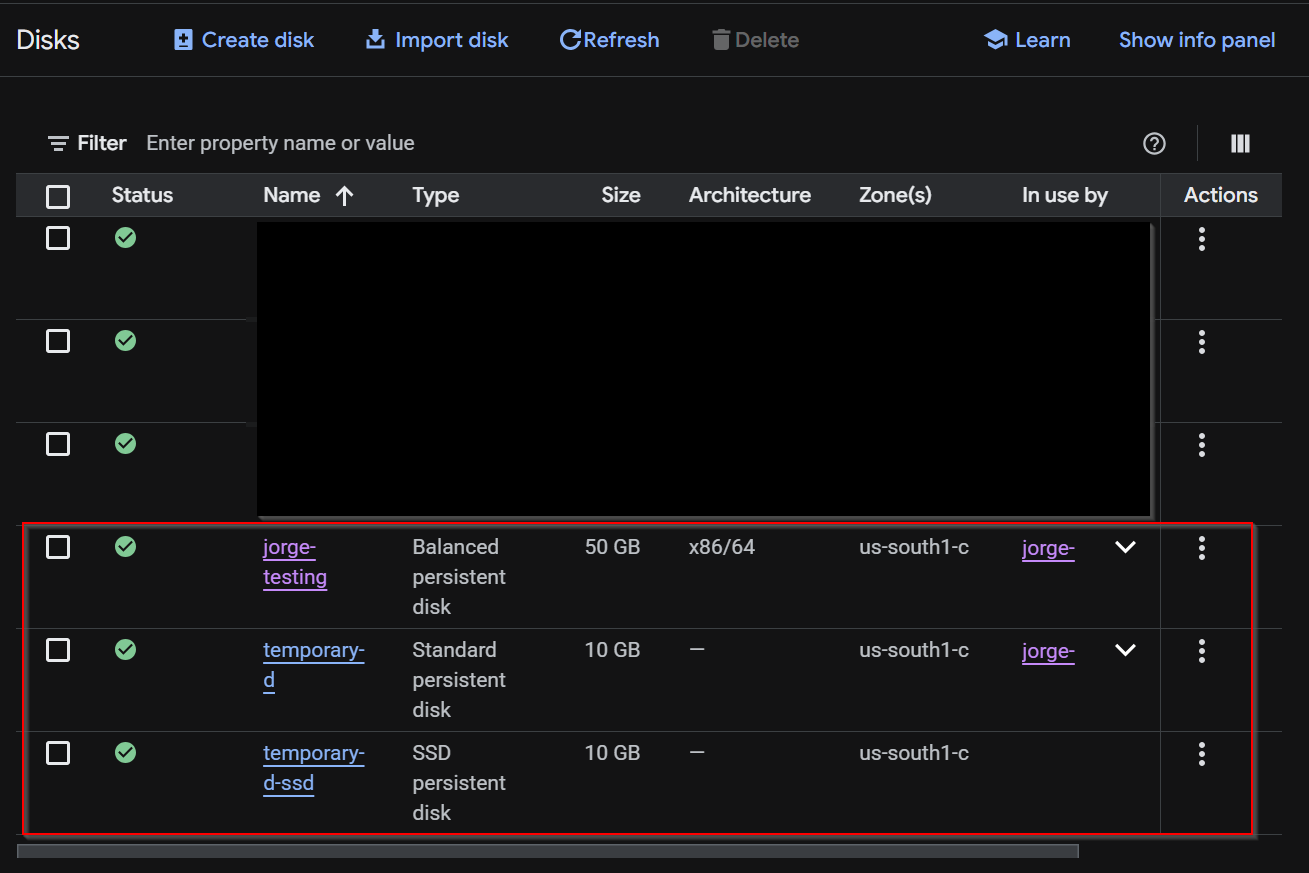
Using that snapshot we’ll create a new drive as an SSD.
This is another one if those “grab a coffee moments.” Make note of that in use by too. My VM is still pointing at temporary-d
gcloud compute disks create 'temporary-d-ssd' `
  --source-snapshot='testing-before-prod' `
  --type=pd-ssd `
  --zone=us-south1-c `
  --size=10
NAME             ZONE         SIZE_GB  TYPE    STATUS
temporary-d-ssd  us-south1-c  10       pd-ssd  READY
4. Detach the old drive from the Virtual Machine#
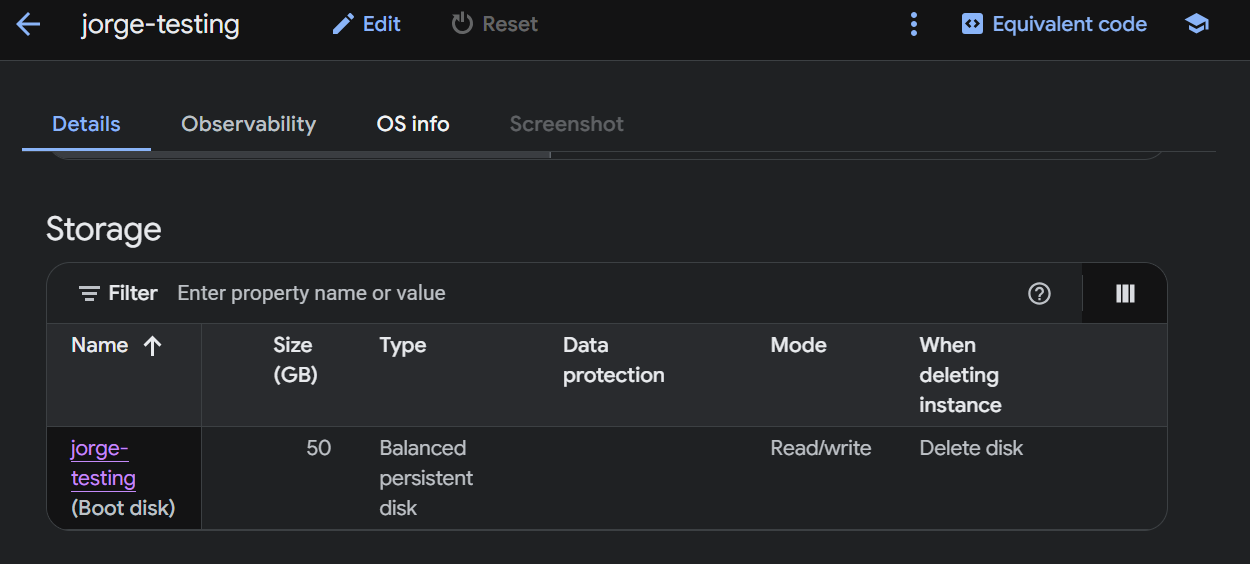
Ok, we have a snapshot for rollbacks, and we have our spanking new clone of a disk as an SSD. Let’s begin surgery by detaching the old disk. In the console you should see no drives.
gcloud compute instances detach-disk 'jorge-testing' `
  --disk='temporary-d' `
  --zone=us-south1-c
5. Attach the new drive#
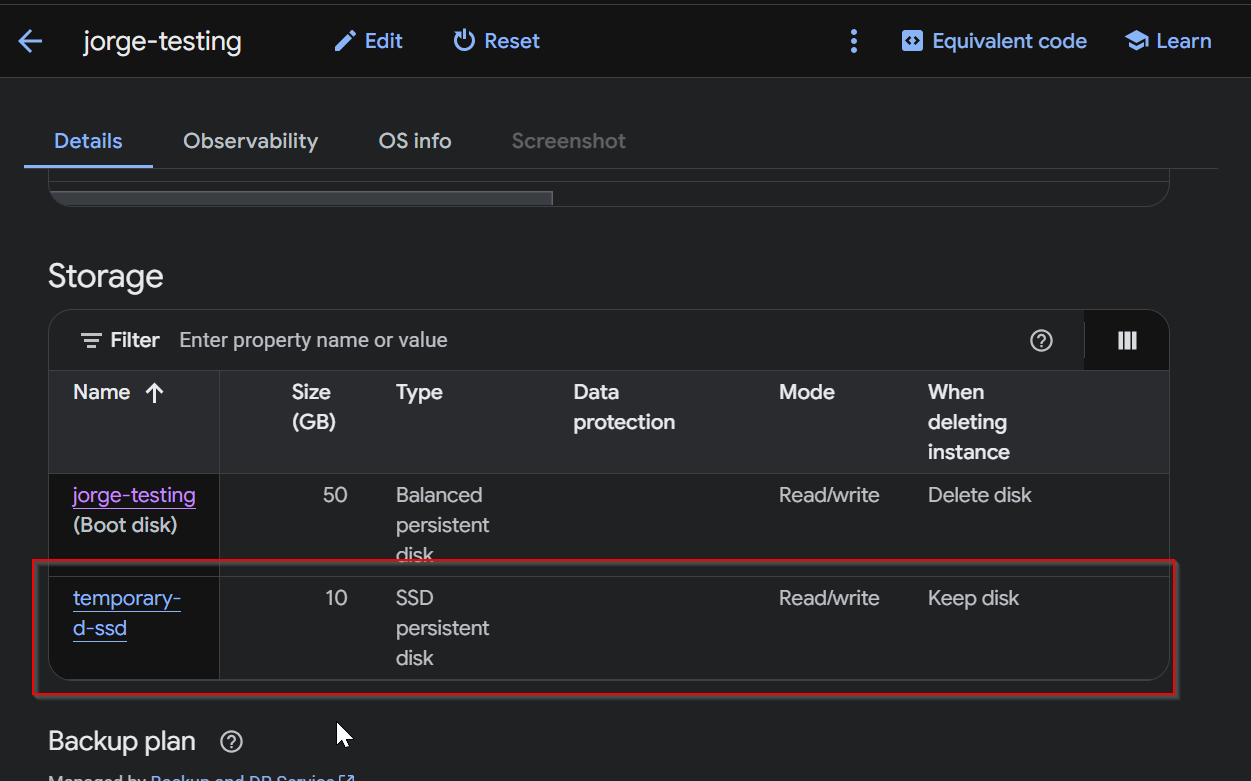
aaaaand now we’ll attach the new drive.
This is a big part. There is a field called the device-name which is an id used by GCP to identify persistent disks attached to virtual machines.
In order for Windows to see the “same device” we need to make sure that the device-name of the new disk we are attaching has the same name as the old one.
When I set up the server, I named it the-temp-d when creating the VM but I also ran gcloud compute instances describe to get the same info.
This is handy when you have a handful of disks attached and you need to make sure you’re looking at the right one.
gcloud compute instances attach-disk 'jorge-testing' `
  --disk='temporary-d-ssd' `
  --device-name='the-temp-d' `
  --zone=us-south1-c
6. Restart the VM#
Start the VM and try to either SSH or RDP into the server and bam! We have successfully replaced the boot disk.
gcloud compute instances start jorge-testing --zone=us-south1-c
Starting instance(s) jorge-testing...done.
Look at the VM one more time and there’s our image! We have swapped out the drive for the SSD all quietly and such.
At first it felt a little like open heart surgery, but after several runs this will be a much simpler fix. I just need downtime for the time it takes to snapshot and clone the drives…I hope that’s fast. Now if something goes horribly wrong doing this in production…well, I guess the fix would be in another post, huh?
Until next time!